Usage
NXBrew-dl is designed to be simple to use. After loading (and entering a URL for NXBrew, which we will not provide), you will see an interface like this:
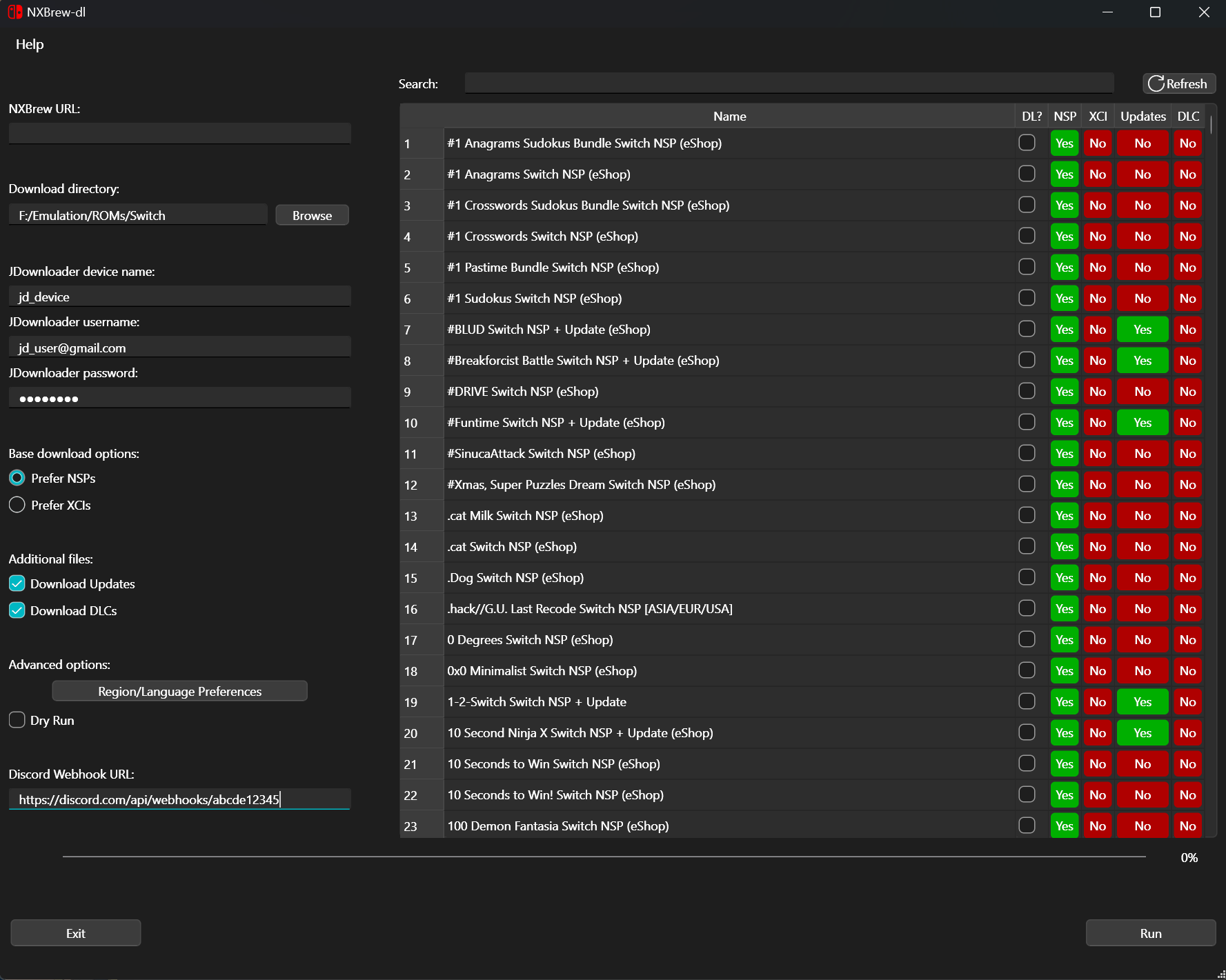
On the left is the config. First, we have a download directly. NXBrew-dl will download files as
[dir]/[Games/Updates/DLC]/[Game name], to keep things organized and clean.
Because we use JDownloader to handle downloading and extracting files, there are some config options required here. You should enter your device name, username and password (see Settings->My.JDownloader in JDownloader for these, or to set them up if you haven’t already). Ensure that JDownloader is running on your download machine before you start downloading!
Note
Because we prefer 1Fichier links over anything else, we strongly suggest investing in a premium account if you’ll be downloading a lot of files. An hour is a long time to wait!
We then have ROM options. These are whether you prefer NSP or XCI files, and whether you would like to download associated updates and DLC, if available.
We expose region and language preferences through an advanced option. By default, we have the USA release as top priority, followed by Europe. For languages, we only allow languages that are marked as English. This should be reasonable for the average user but can be configured. To do that, see advanced usage.
There is also a dry run option. If checked, will parse webpages but not download anything, or update the cache file. Mainly useful for testing.
Finally, we have Discord integration. If a URL is set here, then NXBrew-dl will post a summary of downloaded files via the Discord webhook. For details on how to set this up, see here.
The right shows the NXBrew index. Each is flagged with various properties, such as whether it has an NSP or XCI file, updates, and DLC. By clicking the “DL?” button, you add to the list. You can filter using the search bar at the top. By clicking run, you will queue up downloads.